Propeller-Kernel
THE PROPELLER KERNEL - PART 2
Introduction
This is going to be a whirlwind. The goal of Part 2 is to set up the tooling to build a minimal kernel: a simple infinite loop. However, getting there is going to involve a lot of steps.
Pay attention to the tooling more than any actual code. Part 3 will take a step back and reflect on some major kernel concepts before the tutorial moves forward.
Setting Up the Rust Toolchains
rustup is the easiest way to install Rust and the necessary targets. Once you have rustup installed, run the following to install the ARM cross-compiler targets:
$ rustup target add aarch64-unknown-none-softfloat
$ rustup target add armv7a-none-eabi
NOTE: Notice the use of the software floating-point targets (ARM eabi vs. eabihf and AArch64 softfloat). Propeller avoids floating-point operations in the kernel to avoid the need to save floating-point registers during system calls and interrupts. Later in this part, we will also disable NEON SIMD for the same reason.
The build tooling is also going to need the llvm-tools component for rustup. Run:
$ rustup component add llvm-tools
Next, install cargo-binutils:
$ cargo install cargo-binutils
cargo-binutils, built on llvm-tools, installs utilities such as rust-objcopy and rust-objdump that the build tooling will use to create the raw kernel image and disassembly listing.
Setting Up the ARM Toolchains
On UNIX-like systems, I usually put the ARM toolchains in:
- ARM:
$HOME/.local/cross/gnu-arm-none-eabi - AArch64:
$HOME/.local/cross/gnu-aarch64-none-elf
The build tooling will use the cc crate to compile assembly source, so let’s set up a global Cargo configuration tells the cc crate where the compiler and archiver binaries are for each target.
Create the file $HOME/.cargo/config.toml and add the following lines (replace <ARM_PATH> and <AARCH64_PATH> with the root directories of the toolchains):
[env]
CC_aarch64_unknown_none_softfloat = "<AARCH64_PATH>/bin/aarch64-none-elf-gcc"
AR_aarch64_unknown_none_softfloat = "<AARCH64_PATH>/bin/aarch64-none-elf-ar"
CC_armv7a_none_eabi = "<ARM_PATH>/bin/arm-none-eabi-gcc"
AR_armv7a_none_eabi = "<ARM_PATH>/bin/arm-none-eabi-ar"
Create a New Rust Project
The easiest way to create a new project is to just use Cargo:
$ cargo new --bin propeller
This is going to create a binary that depends on the Rust standard library: your run-of-the-mill executable. Once you create the new project, open it in RustRover.
Now, the new project builds a run-of-the-mill executable with a familiar “Hello, World!” main function. But, we don’t want a run-of-the-mill executable. We want a bare-metal superstar. An unconstrained master of its domain.
no_std
Go ahead and delete the main function Cargo creates in <propeller>/src/main.rs, and add the following minimal Rust code:
//! Propeller Rustland Entry Point.

// No standard library; we will use core instead.
#![no_std]

// No main entry point.
#![no_main]

// When debug assertions are enabled (i.e., this is a debug build), allow unused
// variables and code.
#![cfg_attr(debug_assertions, allow(unused))]

use core::panic::PanicInfo;

/// Panic handler.
///
/// # Parameters
///
/// * `info` - Information about the panic.
#[panic_handler]
fn panic(_info: &PanicInfo) -> ! {
  // Busy halt
  loop {}
}
The #![no_std] directive tells the compiler to use Rust’s dependency-free core library instead of the standard library. As noted in the documentation for core, it does not include any features that use dynamic memory, concurrency, I/O, etc. These are features that require an operating system: the thing we are building.
The #![no_main] directive tells the linker not to expect a main function. This will be handled by a custom linker script later.
Finally, the code sets up a custom Panic handler that just halts. This is pretty much the only Rust code we are going to write for a while.
Cargo.toml
Update <propeller>/Cargo.toml to abort on a panic and add cc as a build dependency:
[package]
name = "propeller"
version = "0.1.0"
edition = "2024"

[dependencies]

[profile.dev]
panic = "abort"

[profile.release]
panic = "abort"

[build-dependencies]
cc = "1.0"
Without the standard library, using Rust’s normal stack-unwinding panic recovery is not possible. However, the panic handler will give us a chance to examine what happened.
Do not bother trying to build yet. We are still just getting started.
Post-Build Python Script
Propeller uses a post-build script to generate the raw kernel image and disassembly listing. You can place this script in <propeller>/support.
Project Cargo Configurations
The global Cargo configuration specifies the toolchain binaries. Now, you need to set up project configurations for the different build targets. Create a common configuration file at <propeller>/.cargo/config.toml. This file will inherit the global configuration.
# Common Build Configuration

# This configuration cannot be used on its own.

[target.aarch64-unknown-none-softfloat]
rustflags = [
    "-C", "link_arg=-Tsrc/arch/aarch64/start/start.ld",
]
runner = ".venv/bin/python support/post-build.py"

[target.armv7a-none-eabi]
rustflags = [
    "-C", "link_arg=-Tsrc/arch/arm/start/start.ld",
]
runner = ".venv/bin/python support/post-build.py"

[env]
# CC_<arch> and AR_<arch> should be defined in the user's global cargo config.
# See https://doc.rust-lang.org/cargo/reference/config.html.
#   NOTE: The configuration files assume the ARM GNU toolchain is used.
The [target.<target>] sections specify Rust compiler options for individual targets. Each target uses rustflags to specify a GNU linker script that details the layout of the kernel image.
Each target also specifies post-build.py as the “runner” for the target. This will hijack the cargo run command to create the raw image and disassembly listing from the cargo build output.
Let’s also create a configuration file for QEMU. Create another configuration file called <propeller>/.cargo/config-qemu.toml. This file will inherit the project and global config.toml.
# QEMU Platform Build Configuration

# Use the Raspberry Pi 3 profile for AArch64 builds and the Raspberry Pi 2
# profile for ARM builds.

[target.aarch64-unknown-none-softfloat]
rustflags = [
    "-C", "target-feature=-neon",
    "-C", "target-cpu=cortex-a53",
    "-C", "link_arg=--section-start=.text=0xffff000000080000",
]

[target.armv7a-none-eabi]
rustflags = [
    "-C", "target-cpu=cortex-a7",
    "-C", "link_arg=--section-start=.text=0xc0010000",
]

[build]
target = ["aarch64-unknown-none-softfloat", "armv7a-none-eabi"]

[env]
CFLAGS_aarch64_unknown_none_softfloat = "-mcpu=cortex-a53 -march=armv8-a+nofp+nosimd -fPIC"
CFLAGS_armv7a_none_eabi = "-mcpu=cortex-a7 -march=armv7ve -fPIC"
This configuration gets a bit more specific with the Rust compiler flags.
For AArch64:
- Disable NEON SIMD instructions.
- Optimize for the Cortex-A53.
- Start the kernel
.text(code) section at 0xffff_0000_0008_0000. QEMU’s boot loader will load the kernel starting at 0x8_0000, but we going to use virtual addresses for the layout of the kernel image (more on this later).
For ARMv7a:
- NEON intrinsics are not available in the
eabitoolchain, so that’s already taken care of. - Optimize for the Cortex-A7.
- Start the kernel
.text(code) at 0xc001_0000. QEMU differs from the Raspberry Pi boot loader here. The Raspberry Pi boot loader will load the kernel starting at 0x8000, but QEMU’s boot loader loads it starting at 0x1_0000. Again, specify the virtual address here (more on this later).
The [build] section specifies the targets to build with the cargo build command.
The [env] section provides the flags used when compiling assembly source with ARM toolchains. These flags are mostly just GCC equivalents of the Rust flags above.
NOTE:
-fPICgenerates position-independent code from the assembly source.
NOTE:
-march=armv7ve? For the ARMv7a target, the configuration tells GCC to use the ARMv7ve architecture. This is really just ARMv7-A with Virtualization Extensions, i.e. the Cortex-A7 and Cortex-A53.
AArch64 Entry Point
We are inching closer to being able to build! Hang in there and just think about how satisfying the first build will be.
Let’s add the entry point assembly. Propeller keeps its architecture-dependent code under <propeller>/src/arch. Each architecture has a start module that contains its assembly source. You could write Rust inline assembly with the asm! macro, however debugging pure assembly is much easier in my experience.
Add the file <propeller>/src/arch/aarch64/start/start.s:
//! AArch64 Entry Point

.section ".text.boot"

///-----------------------------------------------------------------------------
///
/// Kernel entry point.
///
/// # Parameters
///
/// * w0 - 32-bit pointer to the ATAG/DTB blob
/// * x1 - Zero
/// * x2 - Zero
/// * x3 - Zero
/// * x4 - Address of this entry point
.global _start
_start:
1:
  wfi
  b       1b


.section ".text"
This very exciting assembly defines a section named .text.boot, a global function named _start and another section named .text.
The linker places executable code in the .text sections, but is free to order the code however it pleases. _start is in the .text.boot subsection so that the linker script can ensure _start is placed at the kernel base address.
The _start function simply goes into an infinite loop. The wfi instruction idles the processor until an interrupt event occurs.
Do not worry too much about the parameters passed to _start. When the boot loader calls _start, it will call it with the registers set as specified. The ATAG/DTB blob is going to be a big topic later.
AArch64 Linker Script
Now add the file <propeller>/arch/aarch64/start/start.ld:
__page_size = 4096;

ENTRY(_start)

SECTIONS
{
  .text :
  {
    KEEP(*(.text.boot))
    *(.text)
  }

  .rodata : ALIGN(__page_size)
  {
    *(.rodata .rodata.*)
  }

  .data : ALIGN(__page_size)
  {
    *(.data)
  }

  .bss : ALIGN(__page_size)
  {
    __bss_start = .;
    *(.bss .bss.*)
    __bss_end = .;
  }

  __bss_size = __bss_end - __bss_start;
}
You can read more about the GNU linker script format here. But, here is a brief overview:
__page_size = 4096; We will talk about page sizes more later. For now, this is just a constant for aligning sections in the kernel image. It is not actually telling the processor to use 4 KiB pages.
ENTRY(_start) tells the linker that _start is the kernel entry point.
SECTIONS defines the section layout in the kernel image.
As mentioned in the previous section, all executable code is placed in the .text sections. KEEP(*(.text.boot)) tells the linker not to discard the .text.boot section. Placing .text.boot first in the .text section forces our _start function to be placed at the beginning of the kernel image.
ALIGN(__page_size) moves the current position to a 4 KiB boundary. This is used to align sections and can also arbitrarily align the current position using . = ALIGN(__page_size).
The .rodata section will contain any read-only constants generated by the compiler.
The .data section will contain any read-write global and static variables initialized to a value other than zero.
The .bss section will contain any read-write global and static variables initialized to zero.
NOTE: The
__bss_start,__bss_end, and__bss_sizeconstants will make it easier to memset the BSS section to 0 later on.
build.rs
Believe it or not, Cargo is still unable to build the kernel!
Cargo is a programmable build system, that uses, surprise!, Rust as its language. We need to provide Cargo with a build script that tells it how to compile the assembly source.
Add the file <propeller>/build.rs:
use cc;
use std::env;

/// Build script entry.
fn main() {
  let target_arch = env::var("CARGO_CFG_TARGET_ARCH").unwrap();

  let mut cfg = cc::Build::new();

  // None of the default flags are needed. The cargo configuration files
  // will set the required architecture and CPU flags.
  cfg.no_default_flags(true);

  if target_arch == "aarch64" {
    configure_for_aarch64(&mut cfg);
  } else {
    panic!("Invalid target architecture.");
  }

  cfg.compile("start");
}
Cargo provides the main function with the target architecture through an environment variable. Once we know the target architecture, the script instantiates a cc::Build object and starts configuring it to compile the assembly source.
The last line in main tells cc to compile the assembly source.
Let’s add the configure_for_aarch64 function:
/// Configure start module build for AArch64.
///
/// # Parameters
///
/// * `cfg` - The start module builder.
fn configure_for_aarch64(cfg: &mut cc::Build) {
  const AARCH64_START_FILES: [&'static str; 1] = [
    "src/arch/aarch64/start/start.s",
  ];

  cfg
    .include("src/arch/aarch64/start/include")
    .files(&AARCH64_START_FILES);

  println!("cargo:rerun-if-changed=src/arch/aarch64/start/start.ld");

  for file in &AARCH64_START_FILES {
    println!("cargo:rerun-if-changed={}", file);
  }
}
AARCH64_START_FILES is just an array where we will keep a list of the assembly source files to compile.
The next line adds an include path for use later, and adds the list of assembly source files to the build.
Build scripts communicate back to Cargo via println!, and the next couple of lines tell Cargo to rerun a build if the linker script or any of the assembly source files change.
RustRover Specifics
The project config.toml file uses .venv/bin/python to execute the post-build script, so use Settings > Build, Execution, Deployment > Python Interpreter to add a Python 3.9 (or higher) virtual environment at <propeller>/.venv.
Now use Run > Edit Configurations... to set up build configurations in RustRover.
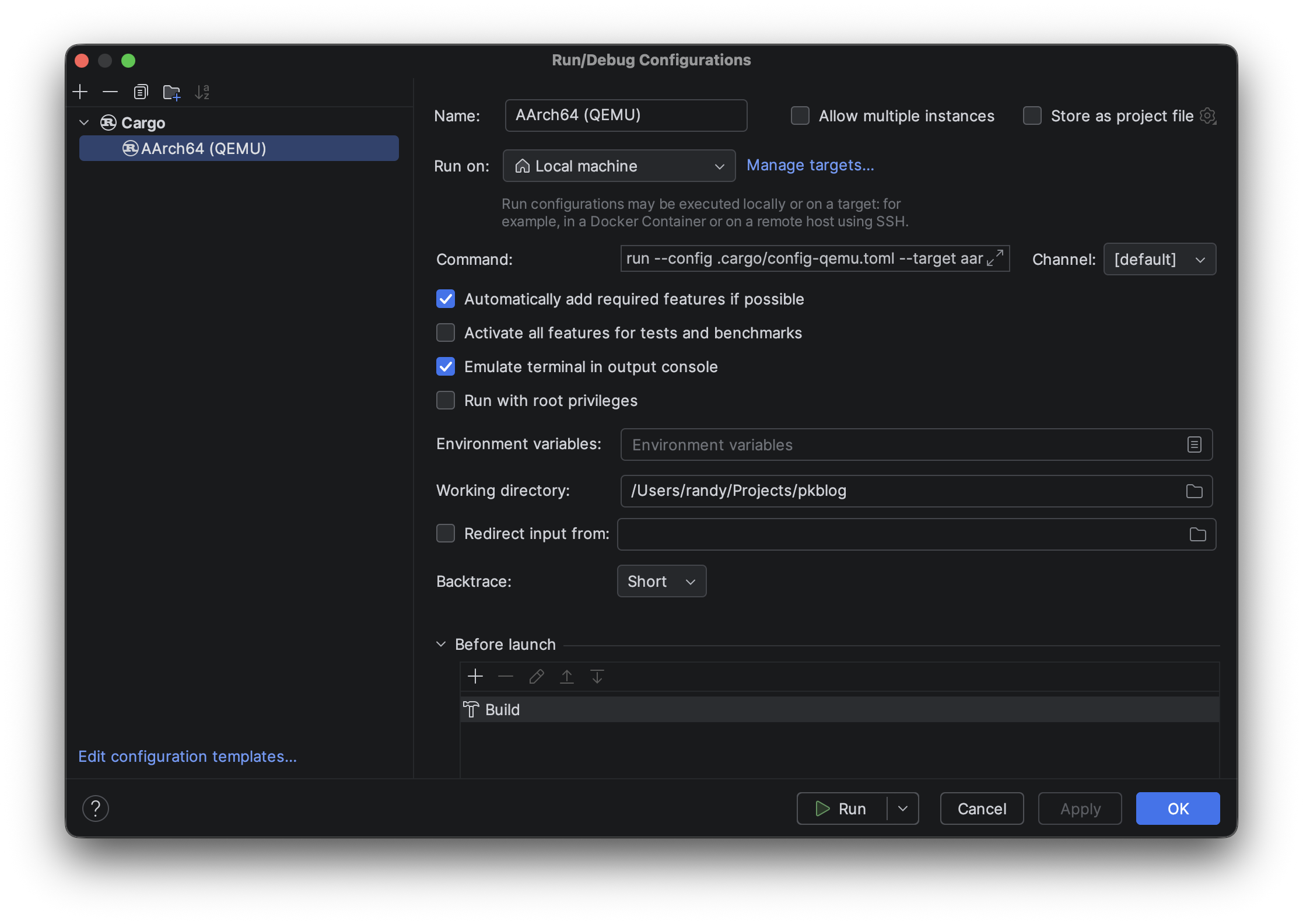
Remove any existing Cargo configurations, then add a new Cargo configuration.
Rename the configuration from “Run” to “AArch64 (QEMU)”.
Change the Command field to:
run --config .cargo/config-qemu.toml --target aarch64-unknown-none-softfloat -- --image kernel8.img
This tells RustRover to execute cargo run using the QEMU configuration and the AArch64 target. The parameters after -- are passed to the post-build script. In this case, the --image kernel8.img parameter is the name of the raw kernel image file the post-build script will output.
GO!
Guess what. It’s time! It really is!
Make sure “AArch64 (QEMU)” is selected as the current configuration, then click the Run button.

If all goes well, the build will succeed!
You should find the following files under <propeller>/target/aarch64-unknown-none-softfloat/debug:
- asm.txt
- kernel8.img
- propeller
Open asm.txt and search for “Disassembly of section .text”. You should see the _start function listed with the wfi and b instructions.
We could run this in QEMU, and we will. But, for now, take a breath and rejoice. You have built the world’s dumbest kernel.
Yeah. I told you it would be satisfying.